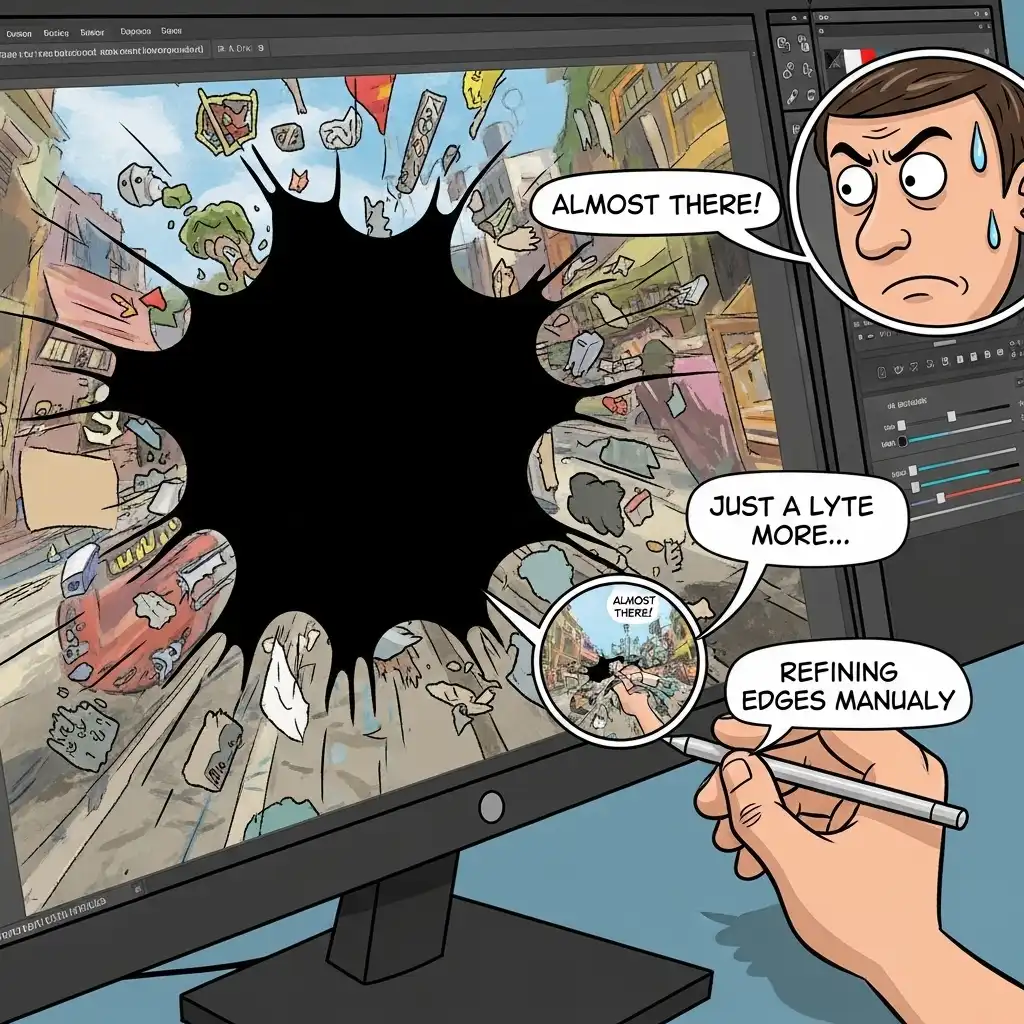
Every photo editor knows the seductive magic of content-aware fill: you draw a rough circle around a distracting trash can, press enter, and it simply vanishes, replaced by a seamless continuation of the grass behind it. When it works, it feels like sorcery. But when you try the same trick on a brick wall, a chain-link fence, or a complex forest canopy, the sorcery breaks down into smeared, repeating, nightmarish patterns.
The truth is that content-aware fill is not a finish line; it is a starting point. In this complete guide you will learn how the algorithm actually thinks, the crucial differences between automated fill, the clone stamp, and the healing brush, the golden rule of "multiple small fills," and how to manually refine automated patches in our Photo Editor so your repairs remain completely invisible.
What Content-Aware Fill Actually Does (The Algorithm's Logic)
Content-aware fill is essentially a highly sophisticated patchwork quilter. When you select an object and ask the software to remove it, the algorithm analyzes the pixels immediately surrounding your selection. It searches for textures, colors, and patterns that match the boundaries, cuts those surrounding pieces up, and pastes them inside the selection to fill the void.
On uniform backgrounds like clear skies, smooth sand, or out-of-focus bokeh, this works flawlessly because the surrounding pixels are interchangeable. But on structured, repetitive, or highly detailed backgrounds — like architectural lines, foliage, or patterned fabric — the algorithm gets confused. It pastes the same window twice, smears a tree branch into a gray blur, or creates a repeating "clone stamp" effect that the human eye instantly detects as fake.
Content-Aware Fill vs Clone Stamp vs Healing Brush
Knowing which tool to reach for is half the battle. Content-aware fill is automated patching: best for large, uniform areas where you want the software to do the heavy lifting of generating new background. The clone stamp is exact pixel duplication: you pick a specific source and paint it over the target, maintaining perfect structural integrity (ideal for extending a straight architectural line or copying a specific brick).
The healing brush is texture duplication with color blending: it copies the texture from your source but mathematically blends the color and luminance to match the target area (ideal for skin blemishes or dust spots on varying backgrounds). Professionals rarely rely on just one; they use content-aware fill to block in the large missing areas, and then switch to the clone stamp and healing brush to surgically repair the edges and patterns the algorithm messed up.
How to Remove Complex Objects Step by Step
- Assess the background: is it uniform (sky, water) or complex (bricks, leaves, crowds)? This dictates your strategy.
- Make a precise but slightly generous selection around the object using the lasso or marquee tool in our Photo Editor, leaving a tiny margin of the background inside the selection so the algorithm has transition data to work with.
- Apply a very slight feather to the selection (1 or 2 pixels) to prevent hard, mathematical edges.
- Run the automated content-aware fill.
- Zoom to 100% and hunt for the telltale signs of failure: repeating patterns, smeared lines, and lighting mismatches.
- Switch to the clone stamp or healing brush on a new empty layer (set to "sample all layers") to manually paint over the algorithmic mistakes, sampling from clean areas nearby.
- Step back to viewing distance to ensure the repair flows naturally with the surrounding texture.
The Golden Rule: Multiple Small Fills
The most common amateur mistake is drawing one massive, complex selection around a large distracting object and hoping the algorithm figures it out. It rarely does. The professional secret is to break the object down into multiple small, logical fills. If you need to remove a person standing in front of a complex building, do not select the whole person at once.
Select and fill the area against the sky first. Then, select and fill the area against the brick wall. Then, the area against the window. By feeding the algorithm smaller, more uniform boundary conditions, you drastically reduce the chance of smeared, chaotic patching. Small fills give the software a higher probability of success, and any manual cleanup required afterward takes seconds rather than minutes.
Common Content-Aware Mistakes (and How to Fix Them)
- Selecting too tightly: leaving no boundary pixels for the algorithm to read — always include a hair of the surrounding background in your lasso.
- Trusting the tool on repetitive patterns: and accepting the resulting "tiling" effect — always inspect at 100% zoom and break up repeating textures manually with the clone stamp.
- Ignoring lighting direction: if the left side of the object is in shadow and the right side is in sunlight, a single fill will blend them into a muddy mess — split the selection into light and shadow zones and fill them separately.
- Forgetting to match grain: a perfectly cloned patch on a high-ISO image will look suspiciously clean compared to the noisy surroundings — add a whisper of matched noise to the repair layer to unify it.
- Destructive editing: doing all repair work destructively on the background layer instead of on a dedicated, non-destructive retouching layer.
Advanced Techniques for Stubborn Distractions
When the background is incredibly complex — like a crowd of people or dense forest foliage — automated fill will almost always fail. Here, you must abandon the algorithm and rely on manual reconstruction. Use the clone stamp with a hard brush to rebuild structural lines (like branches or poles) that the object was hiding. Use the healing brush with a soft brush to paint in organic textures (like leaves or grass).
Work on a separate layer so you can lower the opacity of your repairs if they look too harsh, or mask them slightly to blend with the original image. Patience is the only shortcut here; a complex removal might take twenty minutes of meticulous manual cloning, but the result will be a photograph that looks as though the distraction never existed.
Frequently Asked Questions
What is content-aware fill in photo editing?
Why does my content-aware fill look smeared or blurry?
Is it better to use content-aware fill or the clone stamp?
How do I remove a person from a busy background?
Can I remove objects seamlessly in a free online photo editor?
The Takeaway
Content-aware fill is a powerful assistant, not an autonomous master: it excels at blocking in large, uniform removals but requires human supervision on complex textures. Make slightly generous selections, break large objects into multiple small fills, inspect the results at 100% zoom for repeating patterns, and always keep the clone stamp and healing brush ready to surgically refine the algorithm's mistakes. Master the removal workflow in our Photo Editor — your files never leave your browser.
Key Takeaways:
- The algorithm is a patchwork quilter that struggles with structure.
- Small, logical fills beat one massive selection.
- Lighting and grain must match across the repair.
- Non-destructive retouching layers ensure your manual refinements remain adjustable.