Most editors treat sharpening as a single slider: drag it to the right until the image looks crisp, and call it done. The result is almost always the same — bright halos outlining every leaf, crunchy skin textures on portraits, and skies that look like they are filled with digital sand.
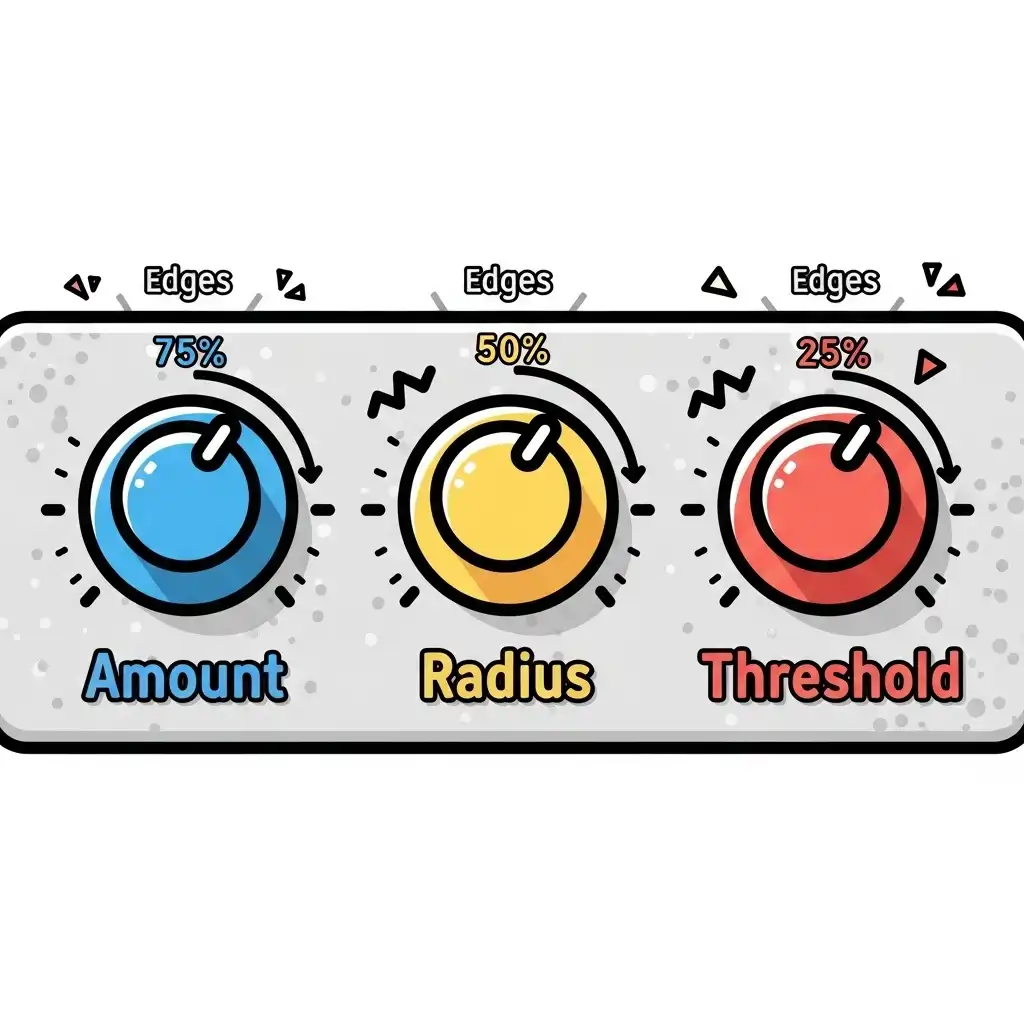
Professional sharpening is not a single action; it is a negotiation between three distinct parameters: amount, radius, and threshold. Understanding how these three components interact is the difference between enhancing true optical detail and destroying an image with digital artifacts. In this complete guide you will learn what each parameter actually controls, how to use threshold to protect smooth areas, the best starting settings for different subjects and resolutions, and the mistakes that ruin otherwise perfect edits — all practicable in our Photo Editor.
What Sharpening Actually Does (The Illusion of Detail)
Before adjusting any slider, it is vital to understand that sharpening does not create new detail. It cannot recover a missed focus or resurrect pixels lost to motion blur. What sharpening actually does is increase local contrast along existing edges. The algorithm finds boundaries where light meets dark, darkens the dark side slightly, and brightens the light side slightly. Your eye perceives this increased micro-contrast as "sharpness." Because it is an illusion based on edge contrast, pushing it too far creates visible bright and dark lines — halos — that scream "edited." The three components — amount, radius, and threshold — simply give you precise control over how wide, how strong, and where that illusion is applied.
The Three Pillars: Amount, Radius, and Threshold Explained
Amount controls the intensity of the edge contrast — how much darker the dark side gets and how much brighter the light side gets. It is the volume knob of sharpening. Radius determines the width of the edge zone affected by that contrast boost. A small radius targets fine details like eyelashes and fabric weave; a large radius targets bold, macro edges like a building against a sky. Threshold is the guardian: it tells the algorithm how different two adjacent pixels must be in brightness before they qualify as an "edge" worth sharpening. If the difference is below the threshold, the algorithm ignores the area entirely. Together, these three dials let you sculpt detail with surgical precision rather than blunt force.
The Crucial Role of Threshold (Protecting Skin and Skies)
Threshold is the most overlooked and most important of the three components. Without it, the sharpening algorithm treats every single pixel transition as an edge — including the subtle luminance variations of digital noise in a shadow, the smooth gradient of a blue sky, and the fine texture of human skin. The result is gritty, noisy, and unnatural. By raising the threshold, you instruct the software to ignore smooth, continuous tonal areas and apply sharpening only to true, high-contrast edges. For a high-ISO portrait, a higher threshold ensures that the eyes, lips, and hair get crisp definition while the skin and background remain beautifully smooth. Threshold is what separates professional refinement from amateur crunch.
How to Set Sharpening Parameters Step by Step
- Always sharpen last, after resizing the image to its final output dimensions — sharpening is output-specific.
- Zoom to 100% (actual pixels); judging sharpening at any other magnification is pure guesswork.
- Set the Radius first based on the image's resolution and subject: fine details need a small radius (0.5 to 1.0 pixels), while bold landscapes can handle slightly wider radii (1.0 to 1.5 pixels).
- Raise the Threshold until smooth areas like skies and skin stop reacting, protecting them from noise amplification.
- Finally, increase the Amount gradually until the edges look crisp, then back off slightly — the right amount sits just below the point where halos become visible.
- Toggle the effect on and off at 100% zoom, then check again at normal viewing distance. Practice this precise calibration in our Photo Editor, where advanced sharpening controls give you full access to all three parameters.
Best Sharpening Settings by Subject (Quick Reference)
- Portraits: Low amount (40–60%), fine radius (0.8–1.0 px), and a higher threshold to strictly protect skin textures from becoming gritty; mask the eyes and hair if your editor allows.
- Landscapes and Architecture: Medium to high amount (60–80%), fine to medium radius (1.0–1.2 px), and a low threshold, because these subjects are full of fine, high-contrast details like foliage and brickwork that benefit from overall crispness.
- High-Resolution Files (40MP+): Because the pixels are denser, they require a wider radius (1.2–1.5 px) to be visible, but a lower amount to avoid overwhelming the image.
- Web and Social Media: Moderate settings survive heavy JPEG compression; slightly over-sharpening for the web is often necessary because compression softens the final file.
- Print: Requires stronger sharpening than screen viewing to compensate for ink spread (dot gain) on paper, but must be judged at 100% zoom.
Common Sharpening Mistakes (and How to Fix Them)
- Sharpening before resizing: an image sharpened at 40 megapixels and then downscaled to 2 megapixels for Instagram will look soft, because the sharpening halos shrank into invisibility; always resize, then sharpen.
- Ignoring threshold: turning the sky into digital sand — raise the threshold to protect smooth gradients.
- Using a radius that is too wide: for the subject, creating thick, glowing halos around high-contrast edges that look like a bad HDR effect.
- Sharpening high-ISO noise: if an image is very noisy, you must apply noise reduction before sharpening, otherwise the sharpening will amplify the grain into gravel.
- Judging sharpening at 50% zoom: halos and grit only reveal themselves at actual pixel size.
Frequently Asked Questions
What do amount, radius, and threshold mean in sharpening?
What is a good threshold setting for portraits?
Should I use a larger radius for high-resolution photos?
Why does my photo look gritty after sharpening?
Can I control amount, radius, and threshold in a free online photo editor?
The Takeaway
Sharpening is the art of controlled edge contrast, governed by three distinct dials: amount for intensity, radius for edge width, and threshold for protection. Set the radius based on resolution and subject, raise the threshold to protect smooth areas like skin and sky, and increase the amount only until halos threaten to appear.
Key Takeaways:
- Sharpening creates an illusion of detail, it does not invent it.
- Threshold is the guardian that prevents gritty skin and noisy skies.
- Always sharpen last, after final resizing.
- Judge strictly at 100% zoom.
- Different subjects demand entirely different starting settings.
Master the three pillars in our Photo Editor — your files never leave your browser.