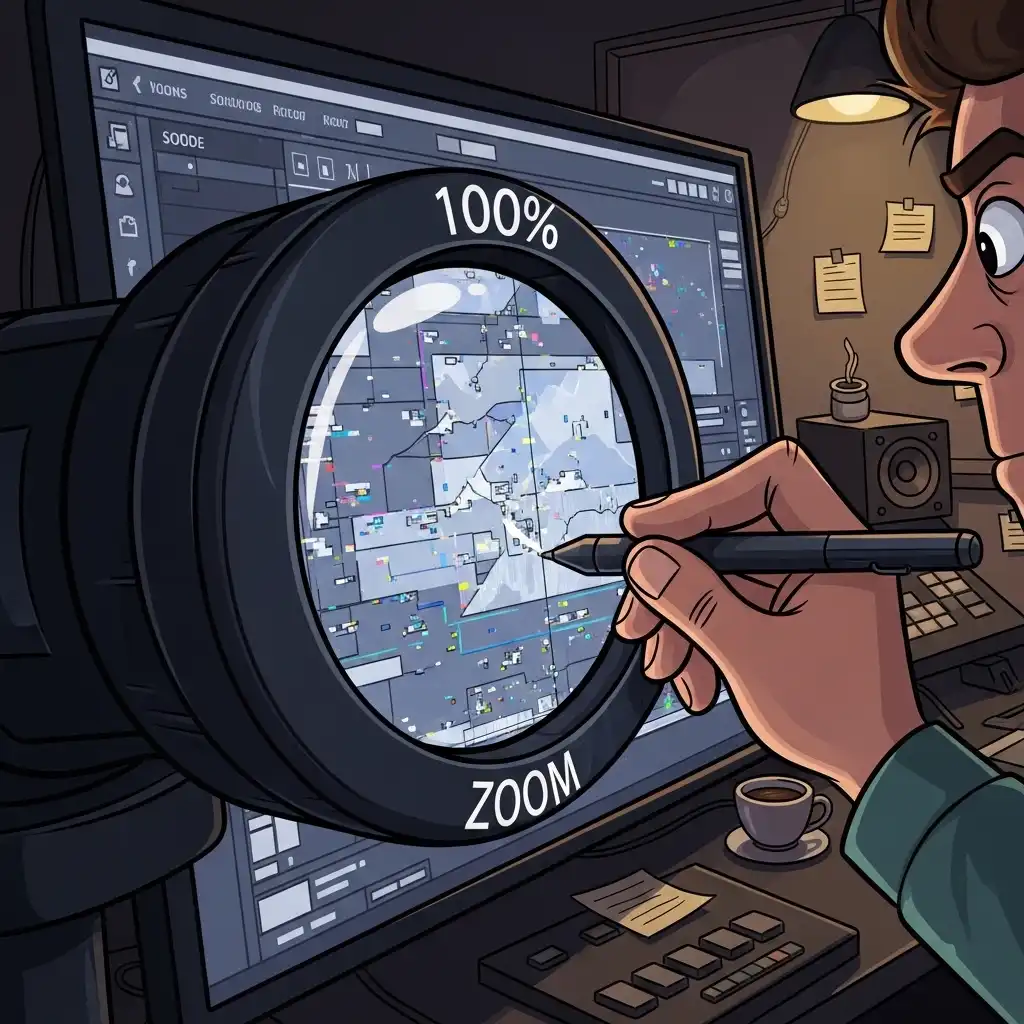
Every edit can fail in two opposite directions, and each failure hides at a different zoom level. Zoomed out, your image looks smooth and harmonious while noise, sharpening halos, and compression artifacts silently accumulate at pixel level. Zoomed in at 100%, every flaw stands exposed — but now a different trap appears: obsessive local correction that reads heavy-handed the moment anyone views the photograph normally.
Professional editors live in both views at once, toggling between forensic scrutiny and holistic judgment throughout the workflow. In this guide you will learn what 100% view actually reveals, why viewing distance matters just as much, a step-by-step dual-view workflow, forensic and holistic checklists, and the zoom mistakes that undermine otherwise excellent edits — all practicable in our Photo Editor.
What 100% View Actually Shows (and Why Zoomed-Out Views Lie)
At 100% — also called actual pixels — each pixel of your image maps to exactly one pixel of your screen: no downsampling, no smoothing, no mercy. This is the only zoom level where you see the file as it truly is. Luminance noise and color speckles appear in their real granularity; sharpening halos show up as thin bright lines along edges; JPEG compression reveals its blocky squares and ringing; chromatic aberration exposes its purple and green fringes; sensor dust, retouching strokes, and mask edges all step forward.
Zoomed-out views hide all of it because the screen averages neighboring pixels together — your monitor literally performs free noise reduction and free artifact concealment. That is why "it looks fine at full view" is the most expensive sentence in editing: the flaws are not absent, they are merely invisible at that size — and fully visible on any device or print that shows the file closer.
The Other Half: Why Viewing Distance Matters Too
The reverse trap is just as real. Spend an hour at 100% and your standards recalibrate to pixel scale: you chase individual noise grains, polish halos no one will ever see, and sharpen until pores crunch — because at actual pixels, more always looks better. Then the image goes to a phone, a feed, or a wall, and everything you pushed reads as excess: oversaturated, over-sharpened, over-processed.
Photographs exist to be experienced, not merely inspected; viewers encounter them at arm's length, at a glance, in context. The holistic view — full frame at normal distance — judges what actually matters: balance, color harmony, subject prominence, emotional impact. Neither view alone is sufficient: 100% protects technical quality, viewing distance protects artistic truth. The discipline is the toggle.
The Dual-View Workflow: Step by Step
- Open every new file with a forensic pass at 100%: scan for sensor dust, missed focus, and noise levels before committing to an edit plan.
- Edit at whatever working zoom feels natural: most global decisions are made between fit-screen and moderate magnification.
- Return to 100% after every technical operation: noise reduction, sharpening, healing, dodge and burn, masking.
- Use targeted checkpoints at 100%: eyes and lips for retouching quality, skies and shadows for noise and banding, high-contrast edges for halos and fringing, corners for aberration and vignette clipping.
- Zoom back to full view after every major stage: and judge balance and mood.
- Before export, perform a viewing-distance check: step back from the screen, or open the image on a phone or another device.
- Make the final call at the distance your audience will actually meet the image: feed, screen, or print. Practice the whole rhythm in our Photo Editor, whose zoom controls make toggling between scrutiny and assessment instant.
What to Look For at 100%: A Forensic Checklist
Run your eyes over these eight suspects at actual pixels. Any one of these, invisible at full view, becomes the first thing a careful viewer notices at close range.
- Noise: luminance grain in shadows and color speckles in midtones.
- Sharpening damage: bright halos along edges and grit in formerly smooth areas.
- Compression artifacts: blocky squares, mosquito noise around fine detail, and ringing on hard edges.
- Chromatic aberration: purple or green fringes on high-contrast boundaries.
- Dust and spots: sensor dust reads as soft dark dots, most visible in skies.
- Retouching traces: smudges, repeating texture, and waxy patches from healing or cloning.
- Banding: stair-stepped gradients in skies and backgrounds.
- Mask edges: hard lines or halos where selections meet unmasked areas.
What to Look For at Viewing Distance: A Holistic Checklist
At full frame and arm's length, judge a different list. Does the subject read instantly, or does something compete with it? Is the color harmonious, or does a cast tint the whole image? Is saturation believable, or does it shout? Is the vignette felt rather than seen? Does the contrast feel dimensional or crushed? Does the image still carry the emotion that made you capture it?
Two classic techniques help: the squint test — blur your vision until only big tonal shapes remain, confirming the composition's hierarchy — and the device test — view the image on a phone or laptop screen, because different displays expose casts and excess that your adapted eyes forgave. If anything screams at this distance, it is too strong, no matter how perfect it looked at 100%.
Common Zoom-Check Mistakes (and How to Fix Them)
- Never checking at 100%: and exporting flaws to clients and prints — the most expensive omission in editing.
- Only checking at 100%: and over-editing to pixel-scale standards that no viewer will ever meet.
- Judging sharpening and noise at 50% zoom: where halos hide and grain masquerades as detail — technical judgments belong at actual pixels.
- Confusing fit-screen with 100%: on high-resolution displays, fit-screen can be a quarter of actual size, hiding everything forensic.
- Checking on an uncalibrated or over-bright display: so both views judge a fiction.
- Forgetting the audience's distance: an image destined for a billboard, a feed, and a print needs three different final checks, because each viewing distance reveals and conceals different things.
Frequently Asked Questions
What does 100% view mean in photo editing?
Why does my photo look good zoomed out but bad zoomed in, or the reverse?
How often should I check at 100% during editing?
Should I sharpen and judge noise at 100%?
Can I zoom to 100% in a free online photo editor?
The Takeaway
The dual-view discipline is editing's quality control system: 100% protects the file, viewing distance protects the photograph. Scan forensically at import, check technically after every operation, judge holistically after every stage, and decide finally at the audience's distance.
Key takeaways:
- Zoomed-out views lie by downsampling; 100% views lie by obsession.
- The forensic suspects and the holistic list cover both.
- Sharpening and noise belong at actual pixels.
- The final judgment always belongs to the distance where the image will live.
- Master the toggle in our Photo Editor — your files never leave your browser.